
Have you lost access to your authenticator app or phone and no longer have your recovery code (backup code)? But did you add a phone number as an additional verification method when setting up two-step verification? If so, you can still log in to your Visma account by following the steps below.
Step 1
Go to Visma and log in with your email address and password.
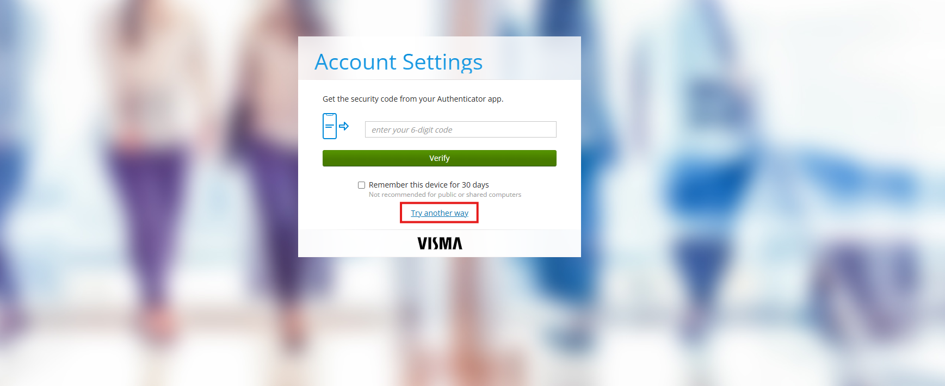
When you are asked to enter the code from your authenticator app, click on ‘Try another way’.
Step 2
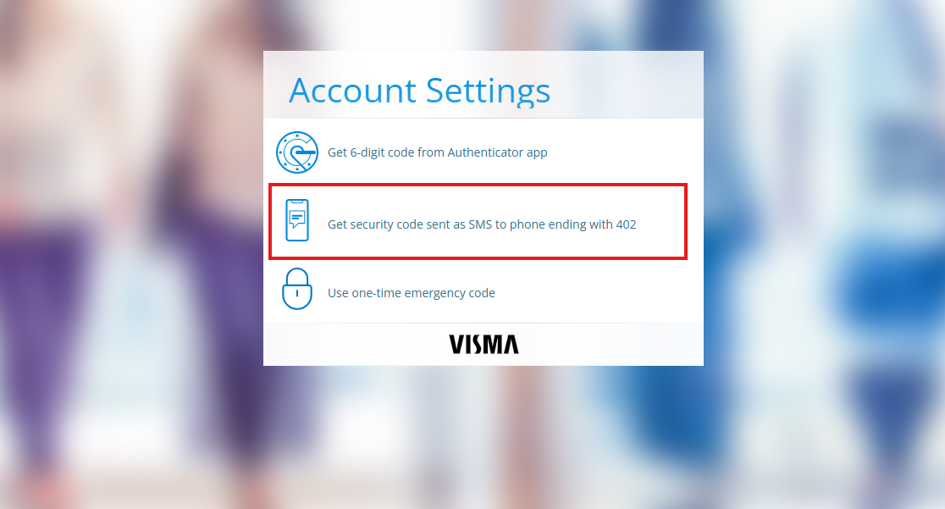
Next, select ‘Get security code sent as an SMS to a phone number ending with …’.
Visma will now send a verification code to the phone number you previously set up as your SMS verification method.
Step 3
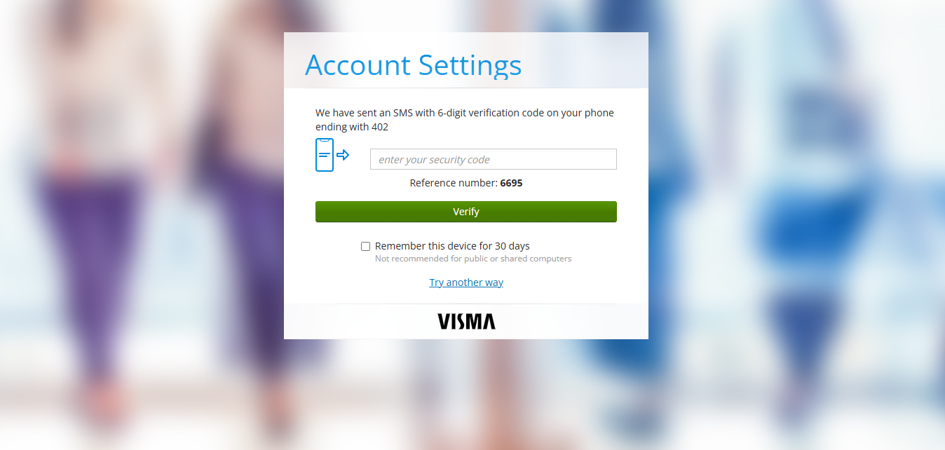
Enter the SMS code you received and click ‘Verify’.
Step 4
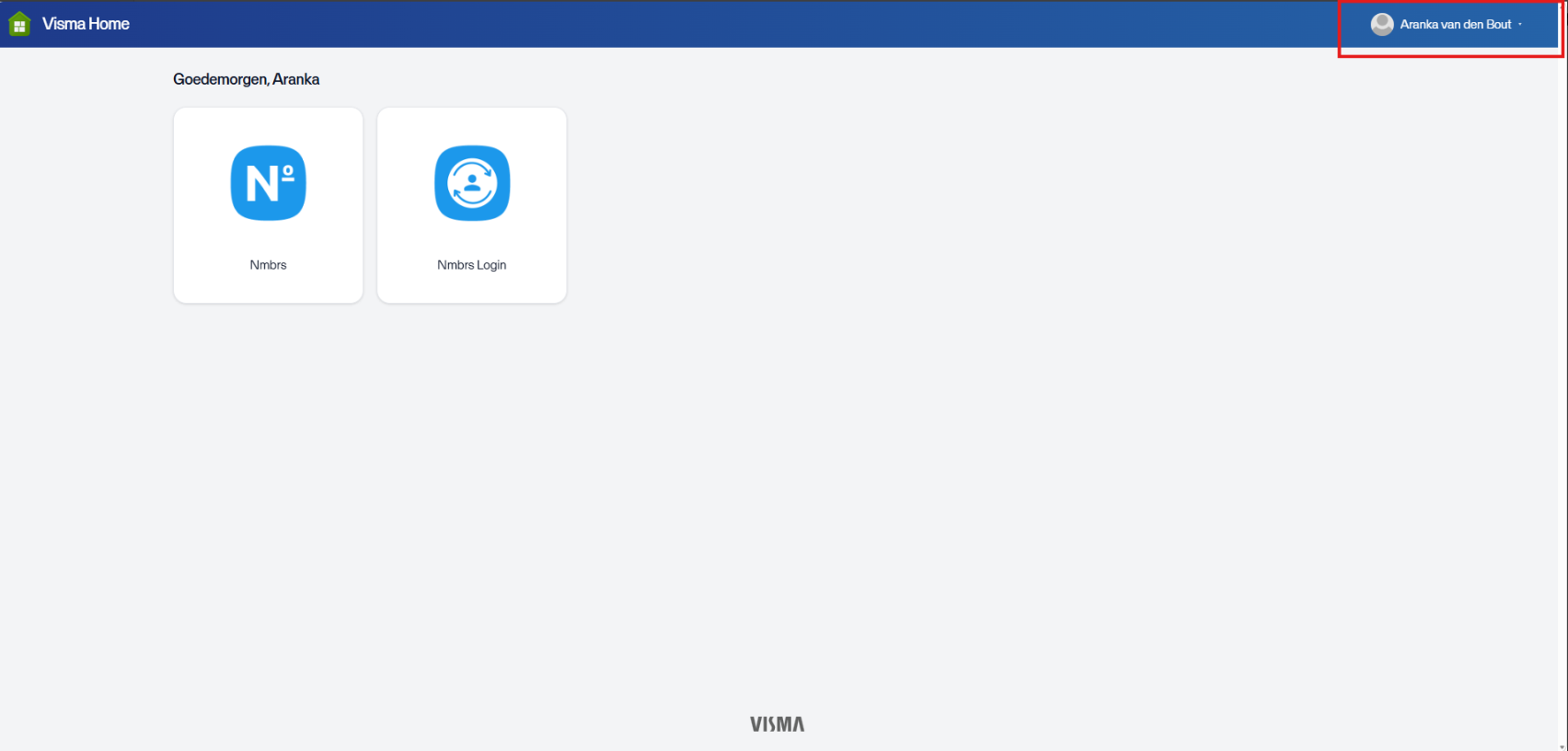
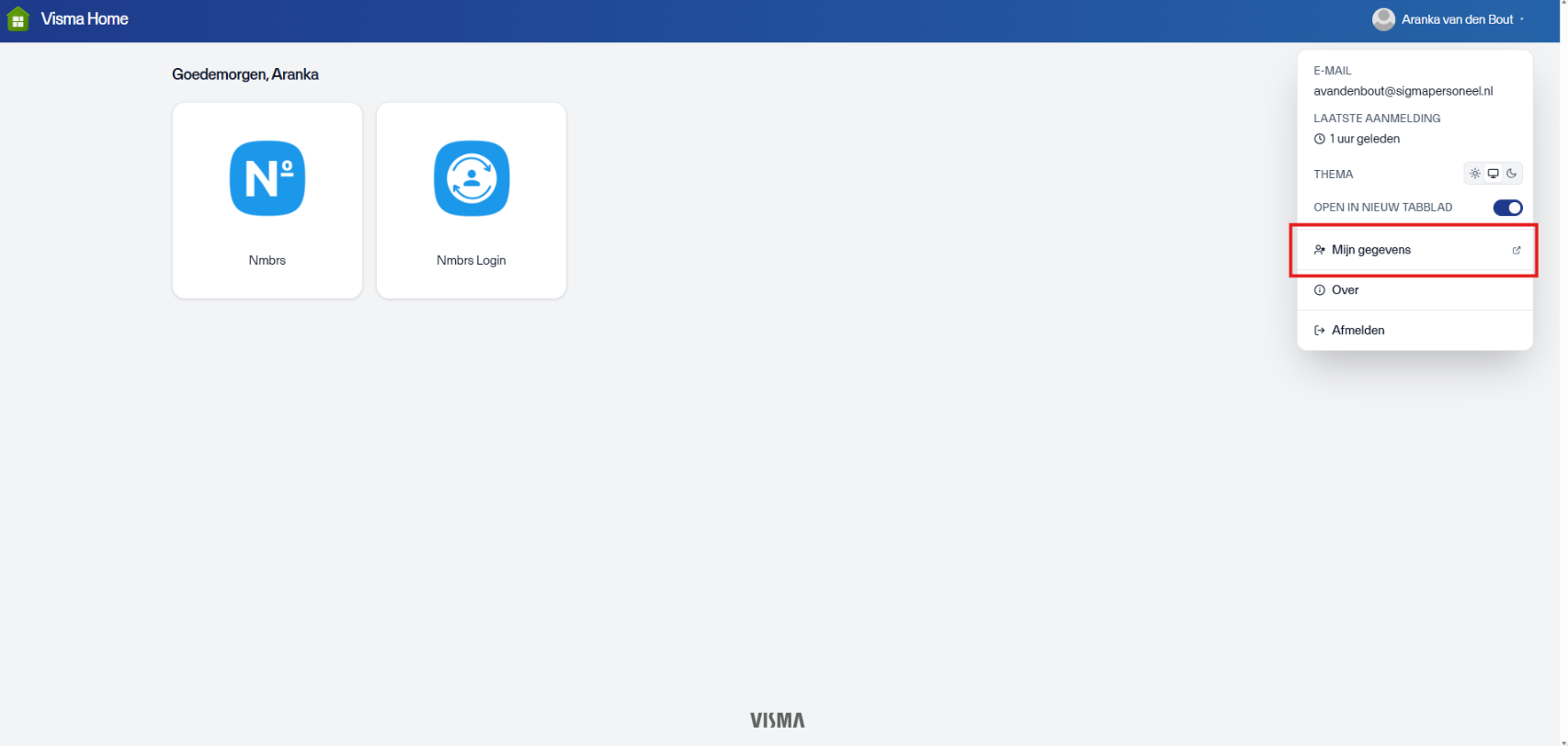
Once you have successfully logged in, you will be taken to the Visma Home portal.
Click on your name (or the name set for your account) in the top right-hand corner.
Step 5
A menu will now open. Select ‘My details’ from this menu.
Step 6
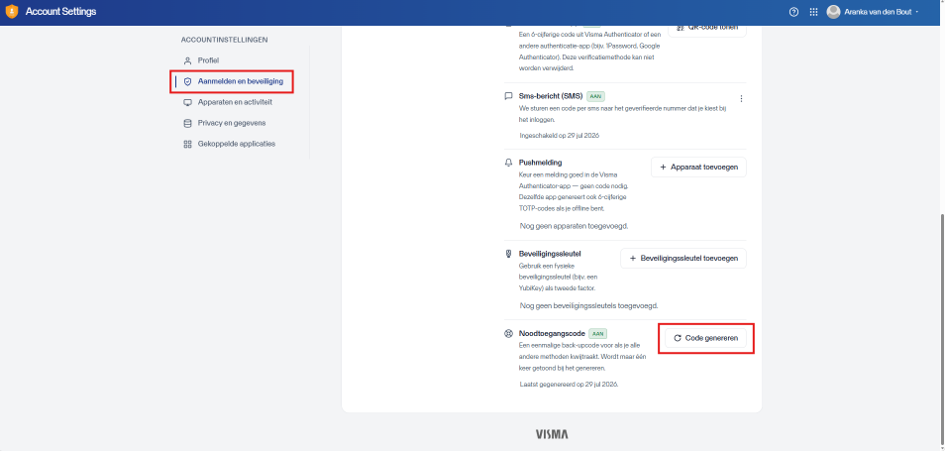
Click on ‘Login and security’ on the left-hand side of the menu.
Then locate the ‘Emergency access code’ section and click on ‘Generate code’.
Step 7
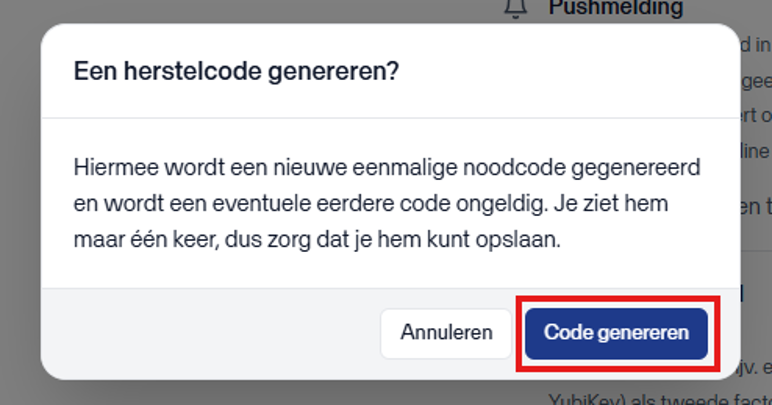
Click on ‘Generate code’ to create a new recovery code.
Step 8
Click on ‘Copy’ and store the recovery code in a safe place.
Important
Keep this recovery code in a safe place and not on your phone. You can use this code if you can no longer access your authenticator app or phone. If you keep the recovery code on the same phone, you will
Opmerkingen
0 opmerkingen
Artikel is gesloten voor opmerkingen.